Essential Apps for Your New Fire TV Stick (Stream Safely in 2026)
New Firestick from Prime Day? Here is the quick setup, the essential apps worth installing, and how to stream safely from day one — starting with a VPN so every app you add stays private.
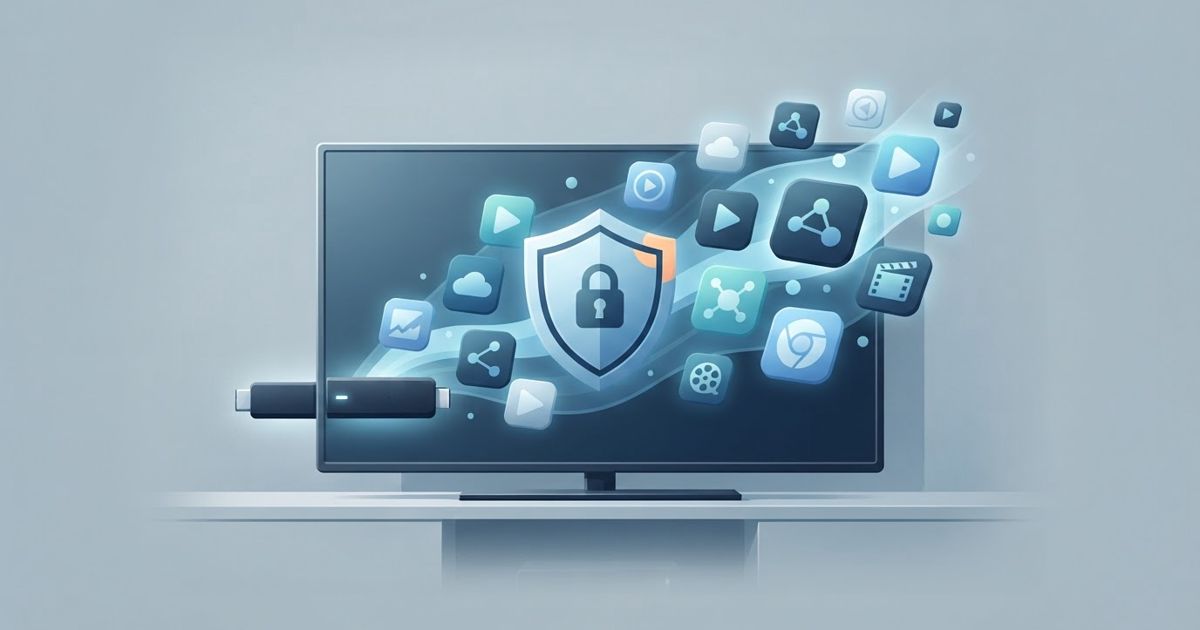
Table of contents
So you grabbed a Fire TV Stick in the Prime Day rush (June 23–26, 2026) — now what? Before you lose an evening to menus, here's a tight setup guide: the essential apps that make a new Firestick genuinely useful, and how to get streaming safely from day one. The goal is simple: a clean setup, the right apps, and privacy baked in from the start.
This article contains affiliate links. If you sign up through our link we may earn a commission — at no extra cost to you.
First, the 5-minute setup
Out of the box, run through these once:
- Sign in to your Amazon account and connect to Wi-Fi.
- Update the software (Settings → My Fire TV → About → Check for Updates).
- Pair the remote and enable voice search if you want it.
- Set up parental controls if kids will use it.
- Install a VPN first (more on why below) so everything after it is private.
The essential apps for a new Fire TV Stick
You don't need dozens — just the ones that matter:
- A VPN — the foundation. Install this before your streaming apps so your viewing is private and protected from the first stream. IPVanish has a native Fire TV app, unlimited device connections, and an audited no-logs policy, which makes it a natural first install.
- Your streaming services — the subscriptions you already pay for (and any free, ad-supported ones worth having).
- A media player like VLC for playing your own files from a USB drive or local network.
- A speed-test app to check your connection if streams stutter.
- A screen-mirroring app if you want to cast from a phone or laptop.
Why "safely" means installing a VPN first
A new Firestick is exciting, but streaming without protection has downsides:
- Your ISP can see — and sometimes throttle — your streaming. A VPN encrypts the connection so it can't single out video traffic to slow down.
- Your viewing history is exposed to your provider. A VPN keeps it private.
- Public or shared networks are risky. If the Firestick travels with you (a lot do), a VPN protects it on hotel and other untrusted Wi-Fi.
Installing the VPN first means every streaming app you add afterward runs through the encrypted tunnel automatically — no extra steps per app.
How to stream safely, step by step
- Install and sign in to your VPN (search the Amazon Appstore, download, log in).
- Connect to a nearby server for the best speed.
- Enable auto-connect on startup so you're always protected.
- Then install your streaming apps and sign in.
- Stream as usual — privately, and with less risk of throttling.
Bottom line
A new Fire TV Stick is one of the best-value things you'll buy on Prime Day, and a clean setup takes minutes. Add the essentials — a VPN first, then your streaming apps — and you get a fast, private, ready-to-go media hub. Start with protection, and everything else just works.
👉 Read our full IPVanish review to see why it's our pick for Fire TV, or get started at IPVanish before the Prime Day deals end.
Related reading: